Create and adjust the shadows
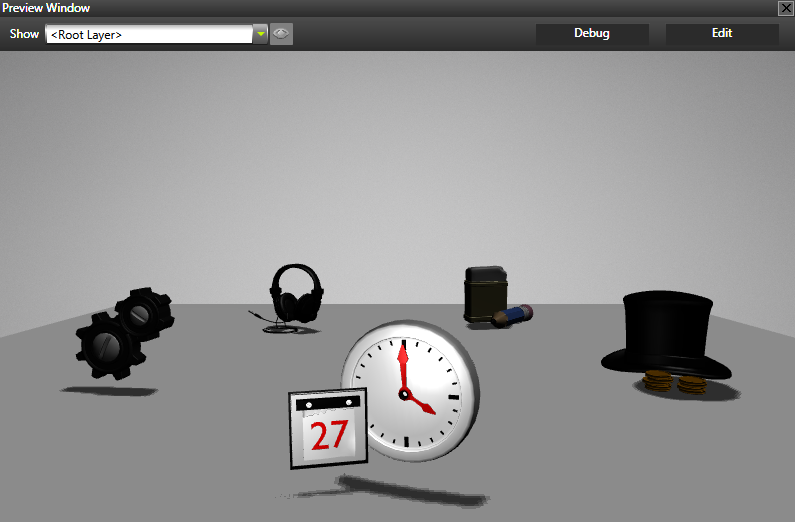
Now that your project and objects that cast shadows are set, in this step you first create and adjust the camera that works as the light source that casts shadows, then you adjust the Shadow Map Composer to create the shadows you need in your project.
Create and adjust the camera that casts shadows
- In the Project create a Camera that casts shadows.
Create as many cameras in a scene as there are shadow maps. However, make sure that the shader can handle multiple shadow maps.
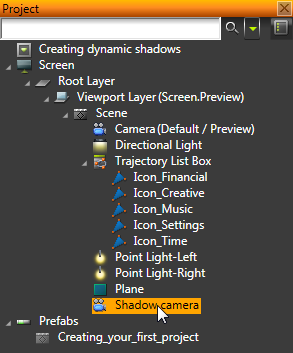
- In the Properties click Add Properties, add the Shadow Caster Camera property, and enable it.

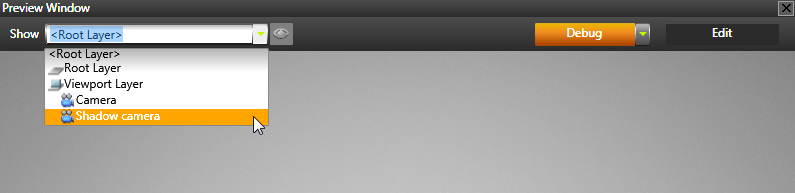
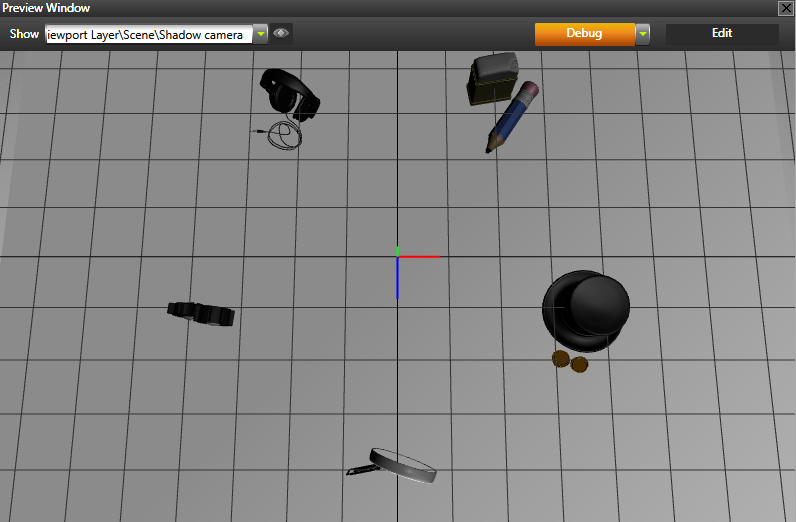
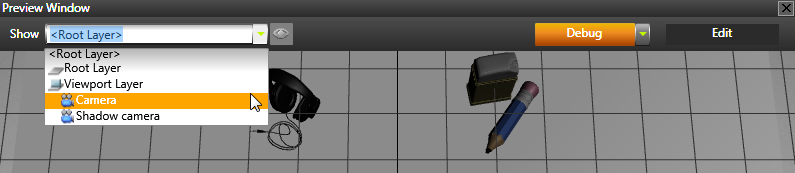
- In the Preview select the camera that casts shadow in the Show drop-down menu.
If you are using the Edit mode, exit the Edit mode to see your scene from the shadow camera.
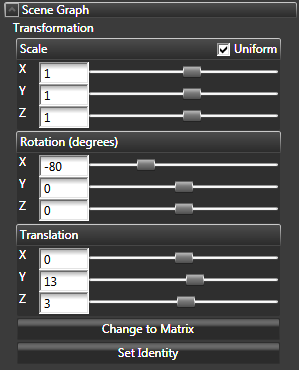
- Place the camera in the scene to the position from where you want the light for the shadows to come.
For example, to create shadows below the objects, place the shadow camera above the objects.
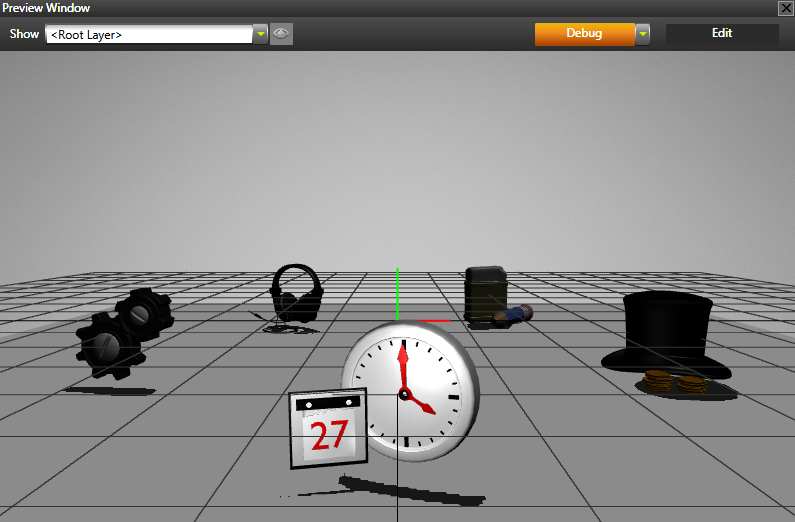
- In the Preview select the camera through which you view the scene in the Show drop-down menu.
If you are using the Edit mode, exit the Edit mode to see your scene from the main camera.
- In the Project select the shadow camera and in the Properties set Z Near and Z Far properties to values as close as possible to the scene size.
For example, set:- Z Near to 7
- Z Far to 40
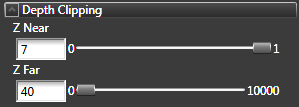
Note that the distance of the shadow casting camera from the shadow casting objects and the values of the Z Far and Z Near properties are related. For the shadow map algorithm to produce the best result, set the Z Near and Z Far properties are as close to the scene size as possible. When they are not the fragment depth comparison can fail because the precision is wrong. For example, a scene that is 50 units big, and without any objects very close to the camera, the Z Near value can be 1 and Z Far 50.
Adjust the dynamic shadow settings
After setting up your project and objects for dynamic shadows, adjust the shadows until you get the result you need.
To adjust shadows:
- In the Library select Composing > Composers > Shadow Map Composer and in the Properties adjust the Shadow Map Width and Shadow Map Height properties to set size of the shadow map.
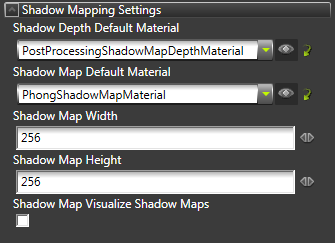
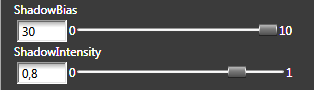
- In the Library > Library tab select Materials and Textures > Materials > PhongShadowMapMaterial, and in the Properties adjust:
- Shadow Bias to adjust the softness of the shadows
- Shadow Intensity to adjust the intensity of the shadows
< PREVIOUS STEP
What's next?
In this tutorial you learned how to create dynamic shadows in Kanzi Studio. Now you can:
See also
To learn more about creating Kanzi applications, see Tutorials.
To find out more about Kanzi Studio features, see Working with ....
To find out more about the shadow map composer, see Using the shadow map composer.
To find out more about how to use composers, see Composers.
To find out more about placing cameras in your applications, see Setting the position of cameras in the Preview.
Open topic with navigation